
Riverspin Casino App
 Author: Frank Op de Woerd · Updated 11.11.2026
Install Riverspin directly from the site on your phone or computer. Use the same account, check the same promotion terms and keep your security settings in place when moving between devices.
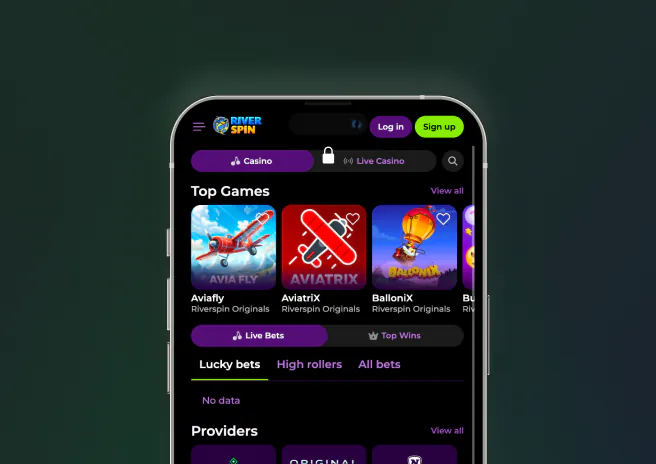
Riverspin PWA app
The Riverspin app is a PWA installed from the website, not a store download.
Friday at 18:00, you open riverspin.com on your phone before looking for an install option. You stay on the official site rather than searching for a separate download package.
- Use the website as the starting point on Android, iOS or desktop. The installation control belongs to your browser.
- Keep your existing account details ready. Installing the app does not require another registration.
- Check the address before entering your password. An icon alone does not confirm where a page came from.
- Use an updated browser if the installation option is missing. The label can differ between devices.
The PWA gives you an app-style entry point to Riverspin from your device. It is not a second casino account or a separate promotion programme. Start with the same security habits you use on the website and keep access to your authentication method when changing devices.
Android app installation
On Android, open Riverspin in a compatible browser and use its install or home-screen option.
Saturday at 10:20, you open the official site in your Android browser. You check the browser menu, select the available installation option and follow the on-screen prompts.
- Open riverspin.com directly rather than following an unfamiliar download prompt.
- Look for an install app or add-to-home-screen option in the browser. Wording depends on the browser you use.
- Confirm the prompt, then open Riverspin from the new icon. Check that the expected account sign-in screen loads.
- Sign in with your registered email and password, completing two-factor authentication if enabled.
iOS app installation
On iOS, use the browser sharing controls to add Riverspin to your home screen.
Sunday at 11:10, you open riverspin.com in Safari. You use the share menu, choose Add to Home Screen and confirm the addition before opening the new icon.
- Check that the official site is open before using the share menu.
- Choose Add to Home Screen when available and follow the device prompt. If you do not see it, check the browser you are using.
- Open the saved icon and use your existing account. Do not register again because you are now using an app-style window.
- Keep access to your authentication method if two-factor authentication is enabled in security settings.
Desktop app installation
On desktop, use a browser that offers PWA installation for the Riverspin website.
Monday at 19:30, you open the site on your computer and check the address bar or browser menu. If an install control is available, you follow its prompts and open the resulting app window.
- Use the official address and check the browser installation control before looking elsewhere.
- Follow the browser prompts rather than downloading a supposed store version. Riverspin uses a site-installed PWA.
- Use your existing email and password after installation. Your desktop access belongs to the same account as your phone access.
- If your browser does not offer installation, continue using the website or check a compatible updated browser.
App account features
Promotions in the app are identical to those on the website.
Tuesday at 20:00, you check a welcome offer on desktop and return through the phone icon later. You check the same account and offer conditions rather than expecting a new mobile-only package.
- The welcome package remains up to €1,500 plus 250 free spins over three deposits. Installation does not restart the deposit sequence.
- The minimum deposit remains €20. Check the cashier and the selected payment method before sending funds.
- Use the profile promo code tab for a code after registration. The registration code field is in the sign-up pop-up.
- First-withdrawal KYC still requires ID, proof of address and proof of payment method ownership. Mobile access does not remove those checks.
You can use the same Riverspin account across device types, but the one-account rule still applies per household, IP address and PC. Keep your account details consistent. A new browser window or home-screen icon is not a reason to create a duplicate account.
App troubleshooting steps
Start with the browser, connection and exact error message when the PWA does not behave as expected.
Wednesday at 08:15, the app window fails to load properly. You open the official site in the browser to see whether the issue affects only the installed entry point.
- Check your connection and reopen the app. Note whether the failure happens before sign-in or after a specific action.
- Check for browser updates if installation controls or page features are missing. Compare the website with the installed app window.
- For a password problem, use account recovery instead of registering again. For a two-factor problem, describe the failed step to support.
- For a blocked-country or VPN message, do not attempt to bypass the restriction. Ask support about access from your actual location.
- Contact 24/7 live chat or [email protected] with your device, browser, time and exact error. Do not include passwords or authentication codes.